Deploying a model
OpenShift AI can deploy models using vLLM with single-model serving.
-
A user with
adminprivileges has enabled the single-model serving platform on your OpenShift cluster.
-
In the OpenShift AI dashboard, navigate to the project details page and click the Models tab.
-
In the Single-model serving platform tile, click Select single-model.
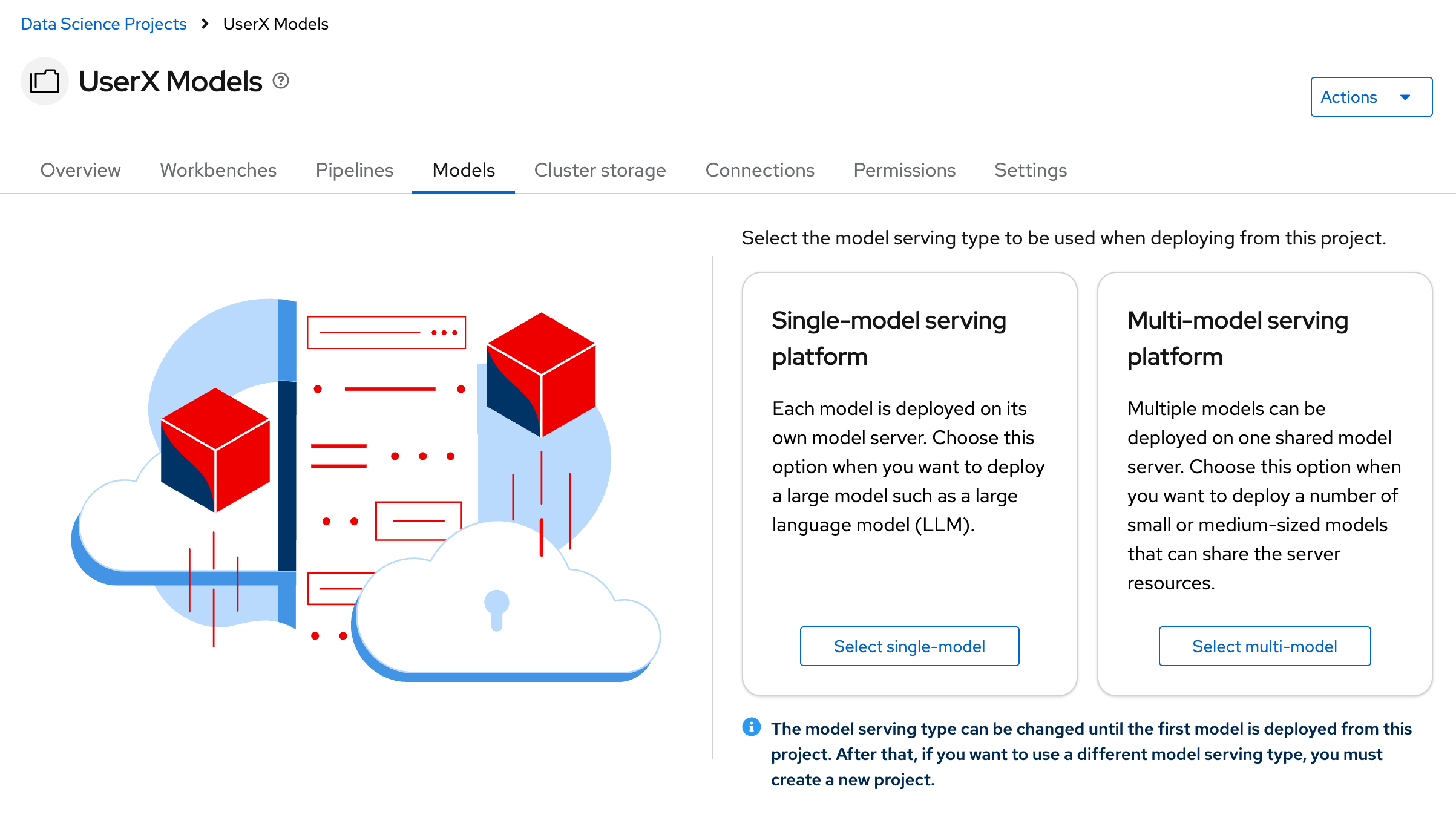
Depending on how model serving has been configured on your cluster, you might see only one model serving platform option. -
Click the Deploy model button, then provide the following values in the form:
-
For Model deployment name, type
Granite. -
For Serving runtime, select
vLLM NVIDIA GPU ServingRuntime for KServefor deployment on NVIDIA GPUs. If you are using Intel or AMD GPUs, select vLLM Intel or AMD GPU. -
For Model framework (name - version), select
vLLM. -
For Deployment mode, select
Standard.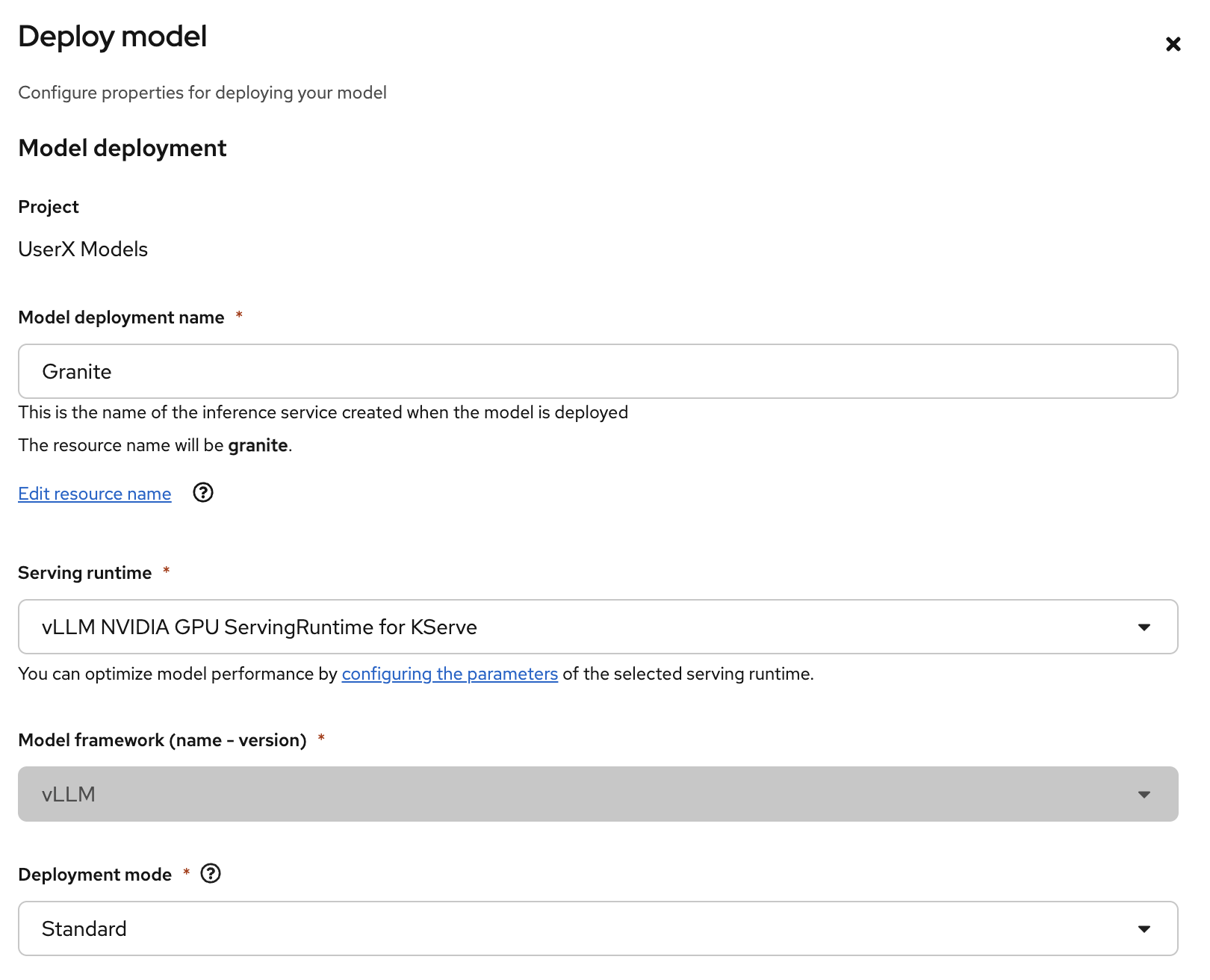
-
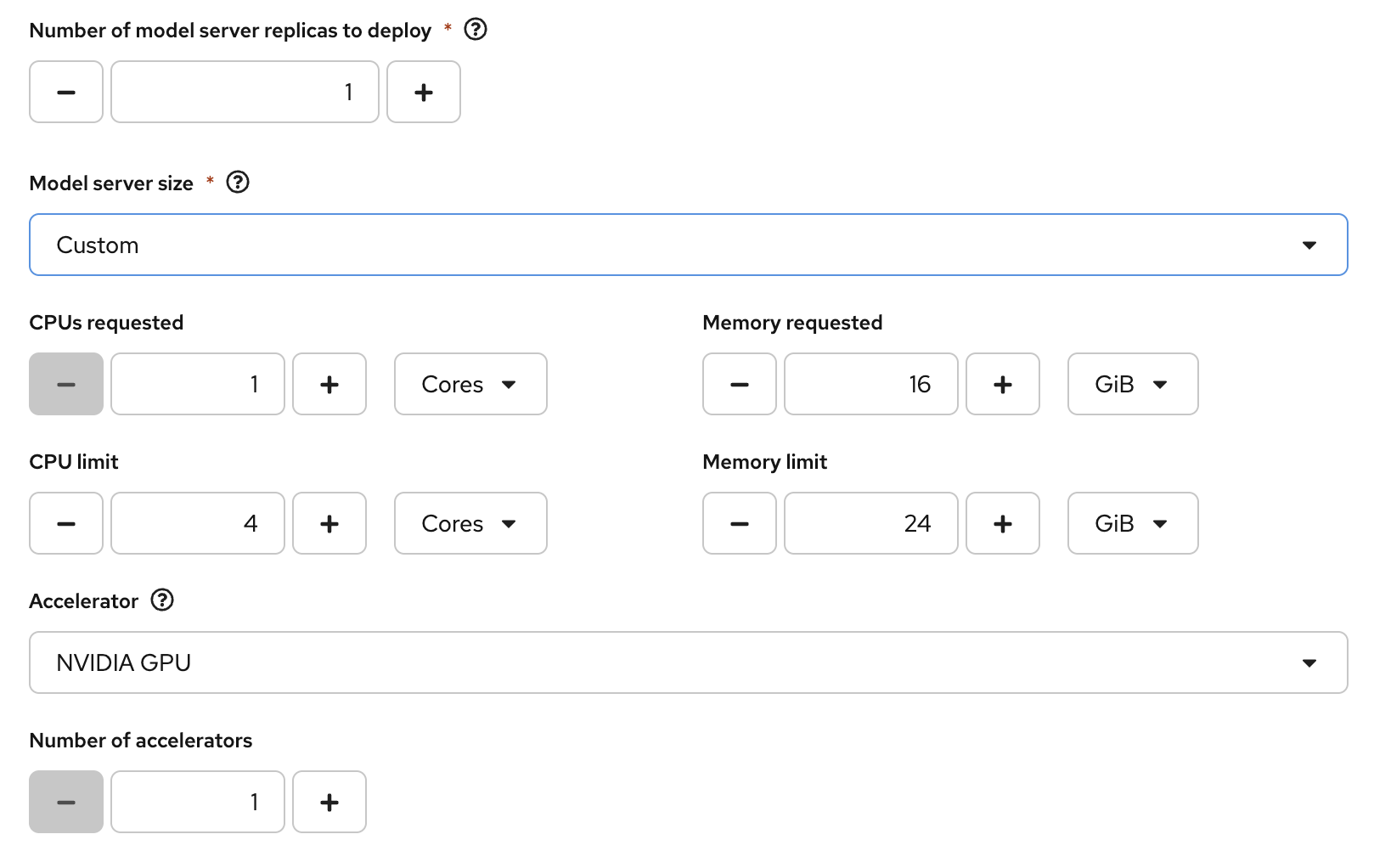
For Number of model server replicas to deploy, select
1. -
For Model server size, select
Custom. -
For CPUs requested select
1 -
For CPU limit, select
4 -
For Memory requested, select
16GiB -
For Memory limit, select
24GiB -
For Accelerator, select
NVIDIA GPUor the appropriate accelerator for your cluster. -
For Number of accelerators, select
1.
-
For Model route, select the checkbox for
Make deployed models available through an external route. -
For Token Authentication, select the checkbox for
Require token authentication.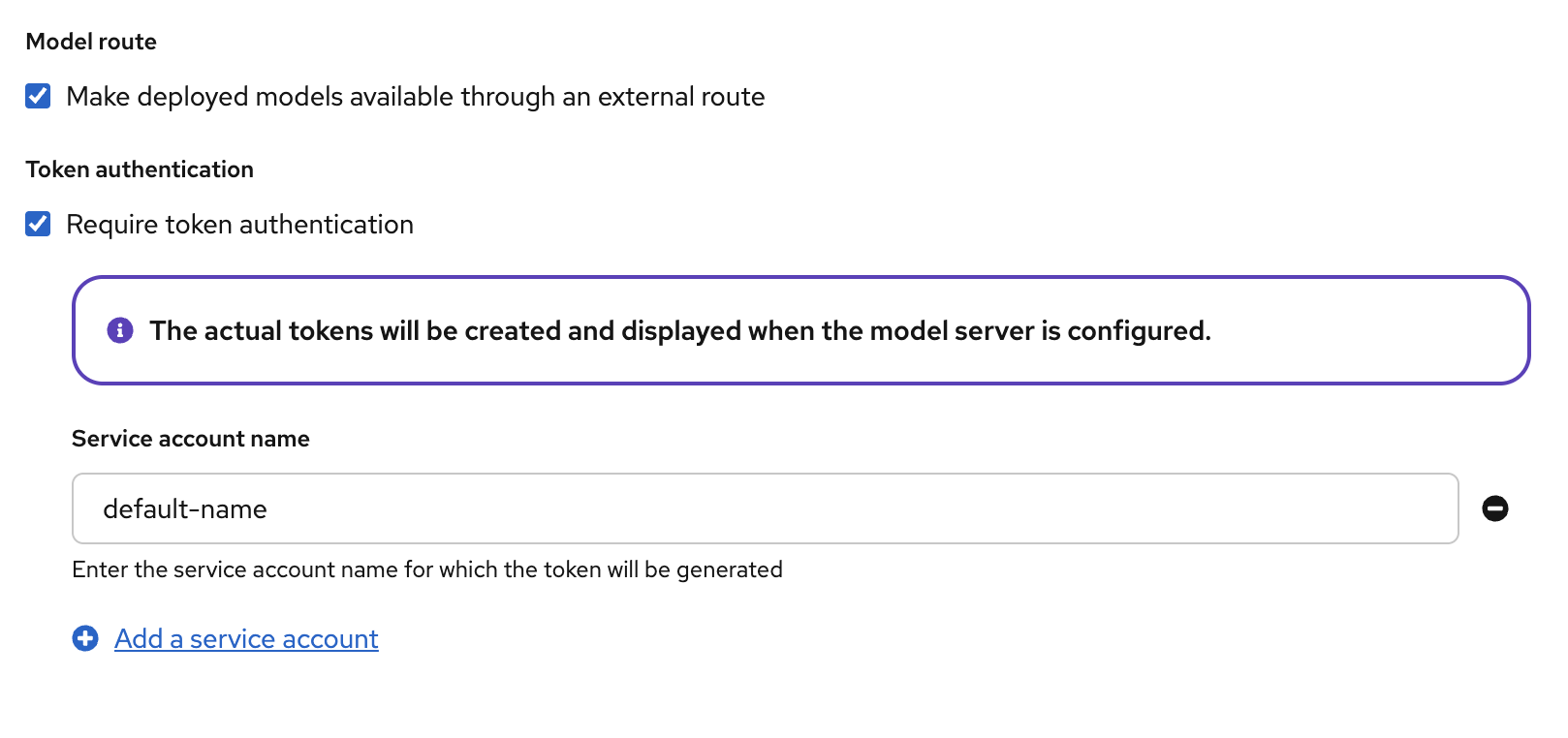
-
For Source model location, select
Create connection. -
For Connection type, select
URI - v1. -
For Connection name, type
Red Hat Catalog Granite. -
For URI, enter the following URI:
oci://registry.redhat.io/rhelai1/modelcar-granite-3-1-8b-lab-v1:1.4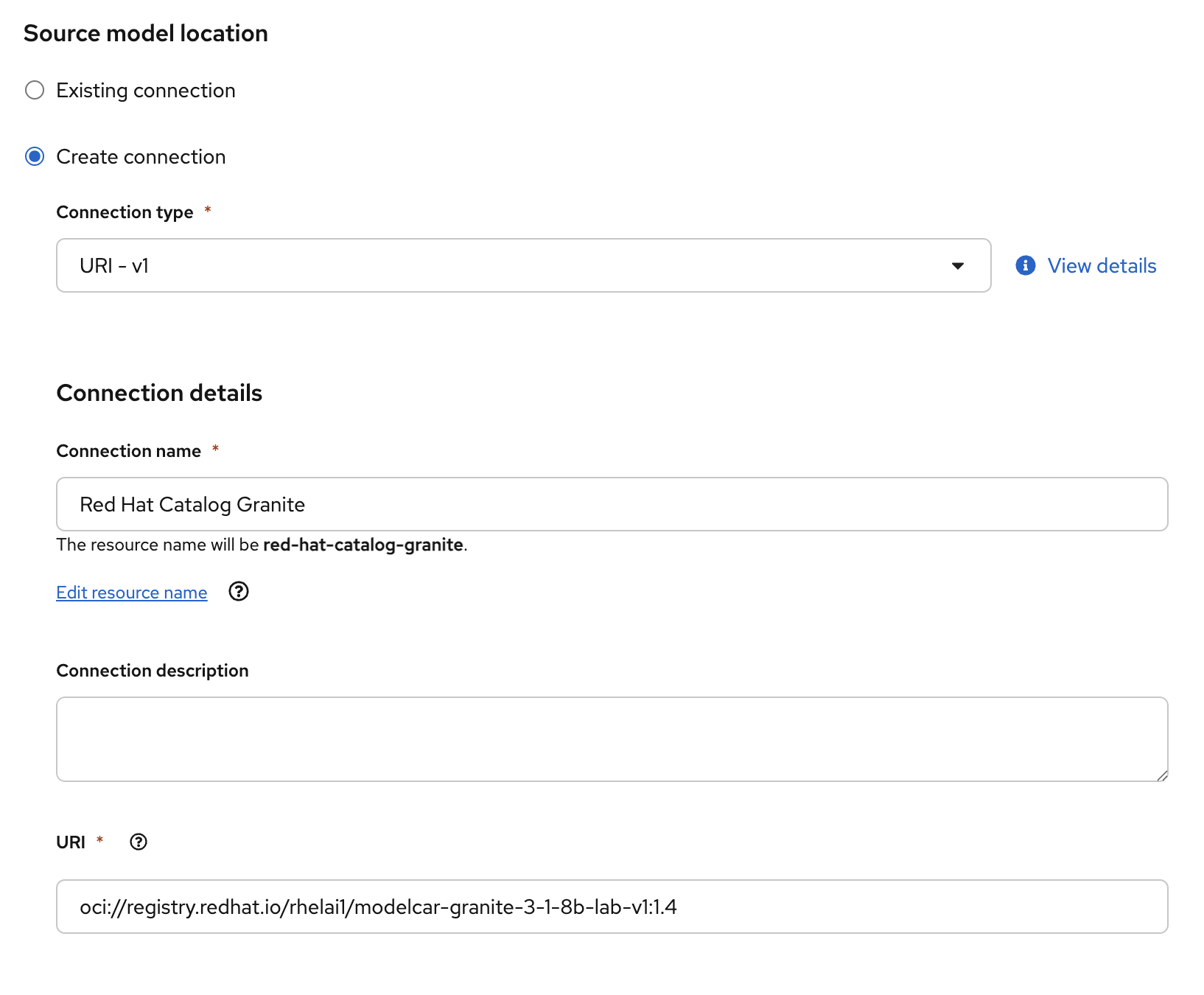
-
-
For Configuration Parameters - Additional serving runtime arguments, enter the following argument:
--max-model-len=4096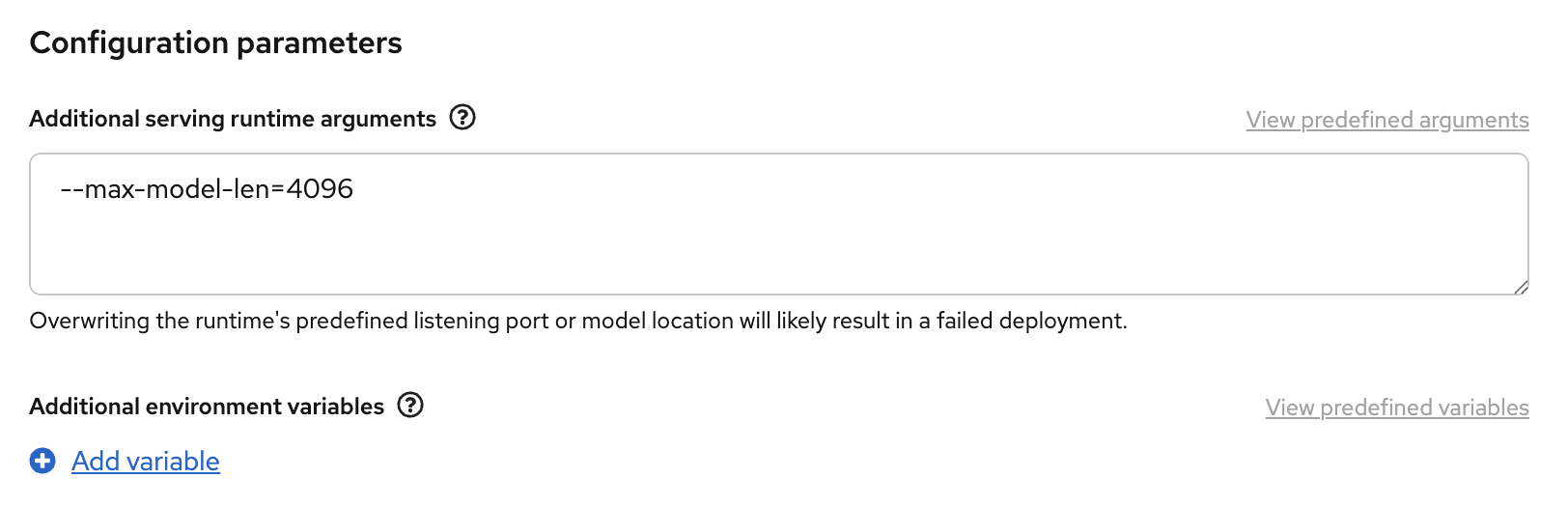
-
Click Deploy.

Notice the loading symbol under the Status section. The symbol changes to a green checkmark when the deployment completes successfully.